Industry: a quick detour
Where to find interesting stories? Quick answer: where things and people are on the move.
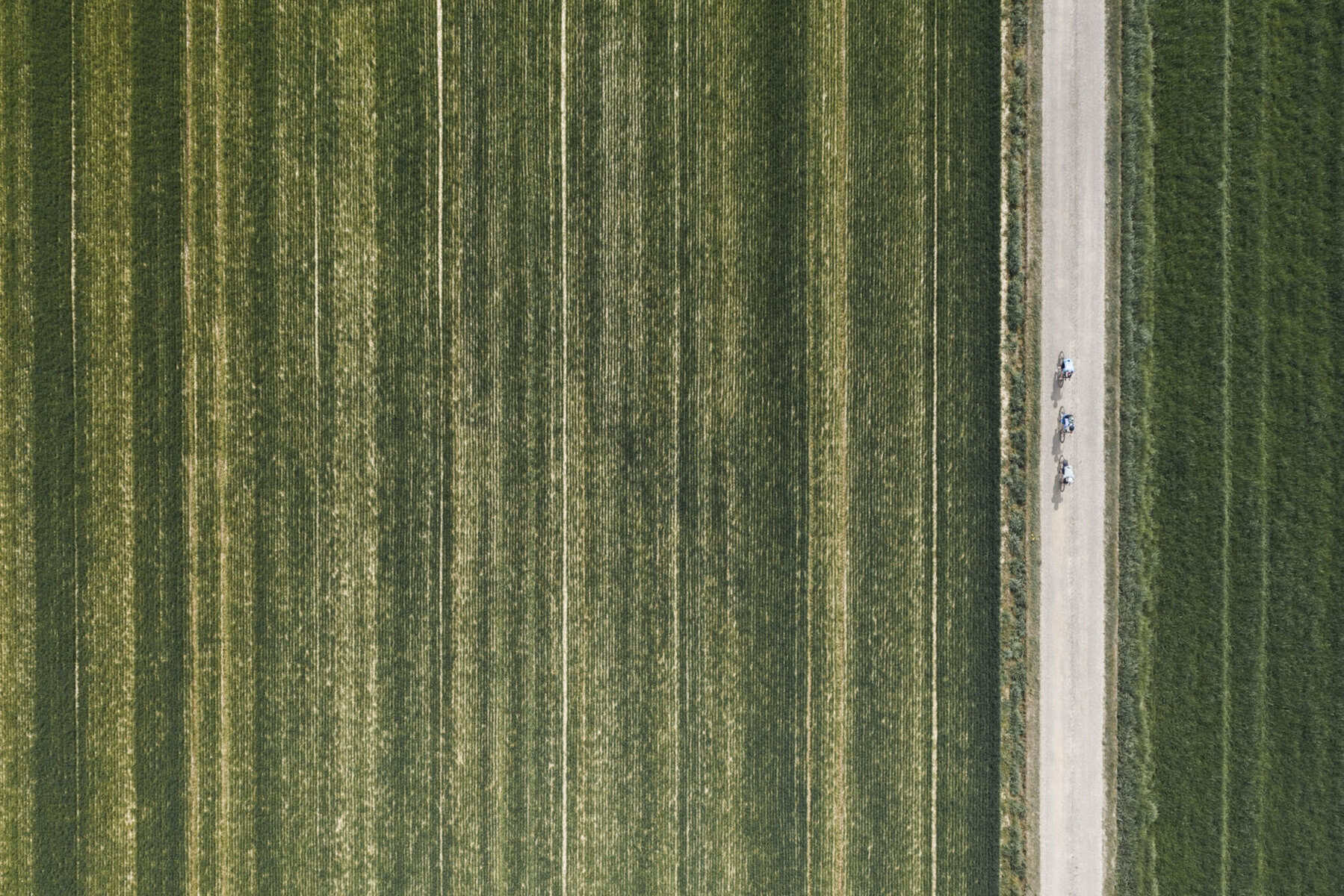
Snapseed has been my choice just after Polarr went paying, and before I definitively switched to LR. Over time, it has changed a lot, and mostly in a good way. Since a few years, it’s owned and developed directly by Google.
It’s simple enough, and complete enough to satisfy all your needs. Sometimes it’s even too much, I’d say.
Snapseed supports both jpeg and RAW, which is cool.
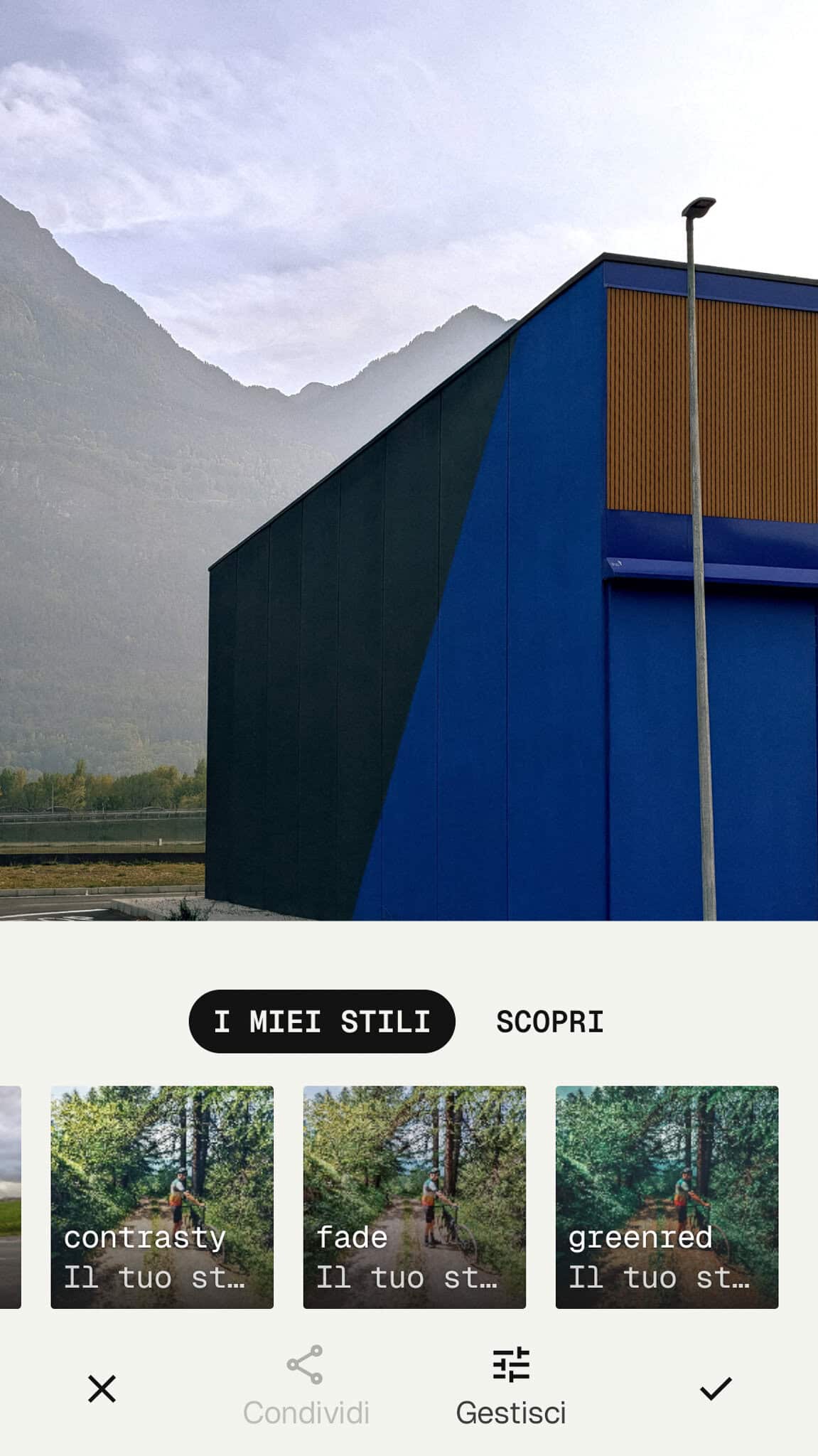
However, its main feature is probably the looks stuff. (“effetti” in the Italian version): these are presets/filters that can change your picture with one touch, often dramatically.
But it’s not over. What makes looks versatile and easy are two other features. First, the QRcode sharing. When you see a look you like, you can scan the QR code and it will upload to the app. Easy and quick.
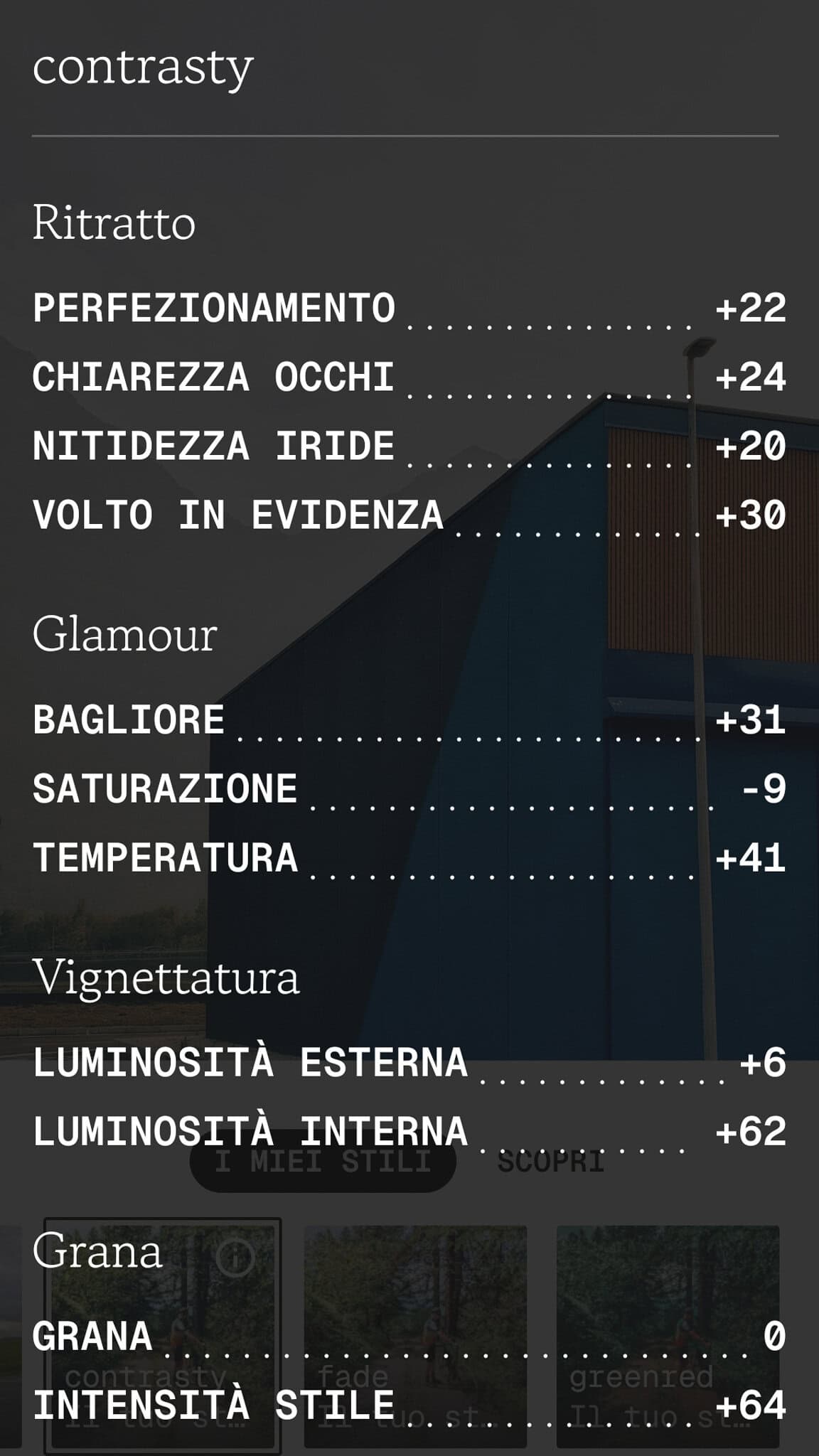
Second, you can edit looks as much as you like, even those you downloaded. “Nothing locked here” as the app reads. Indeed, if you open the information box, it tells you every parameter you need to achieve that look.
Watch out: Snapseed can work with RAWs, but maybe your phone cannot: in this case, you will see blank previews when you'll try to upload from your library.
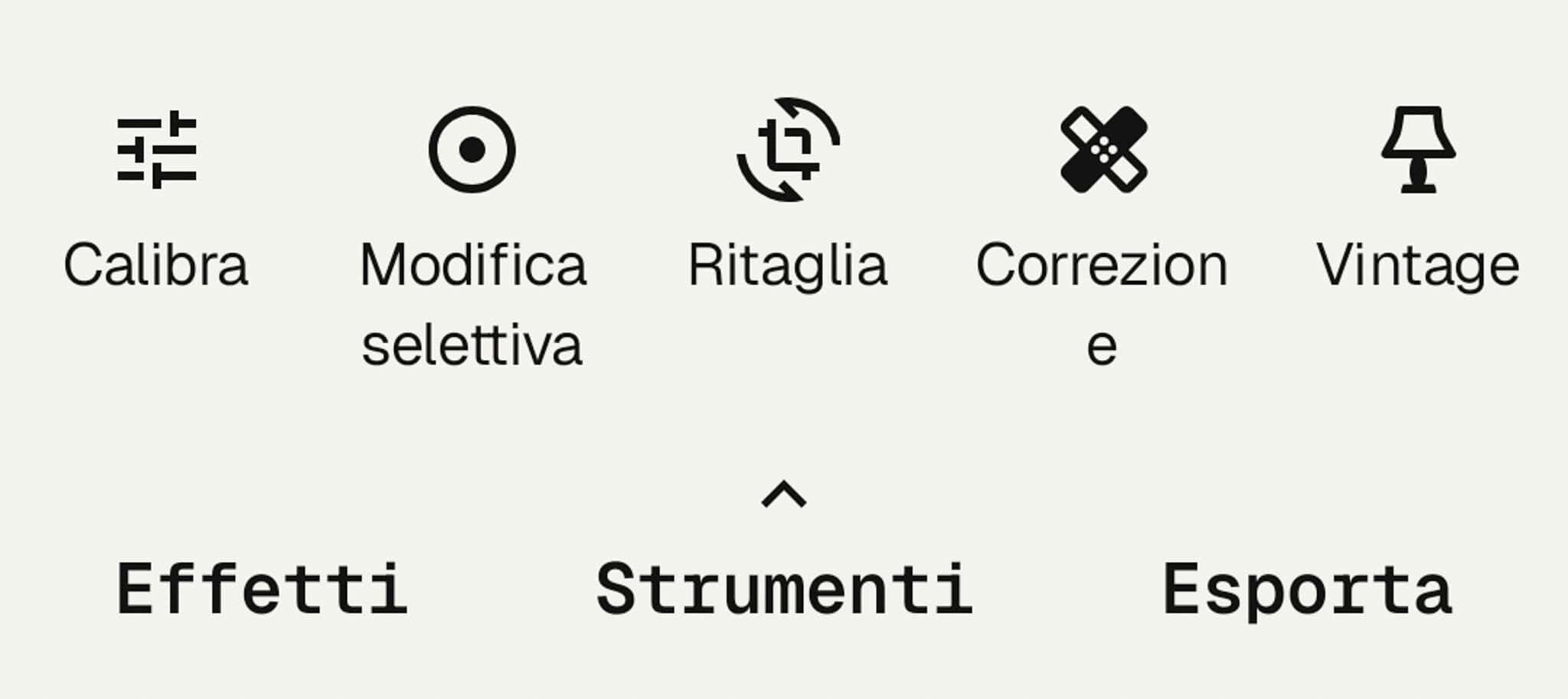
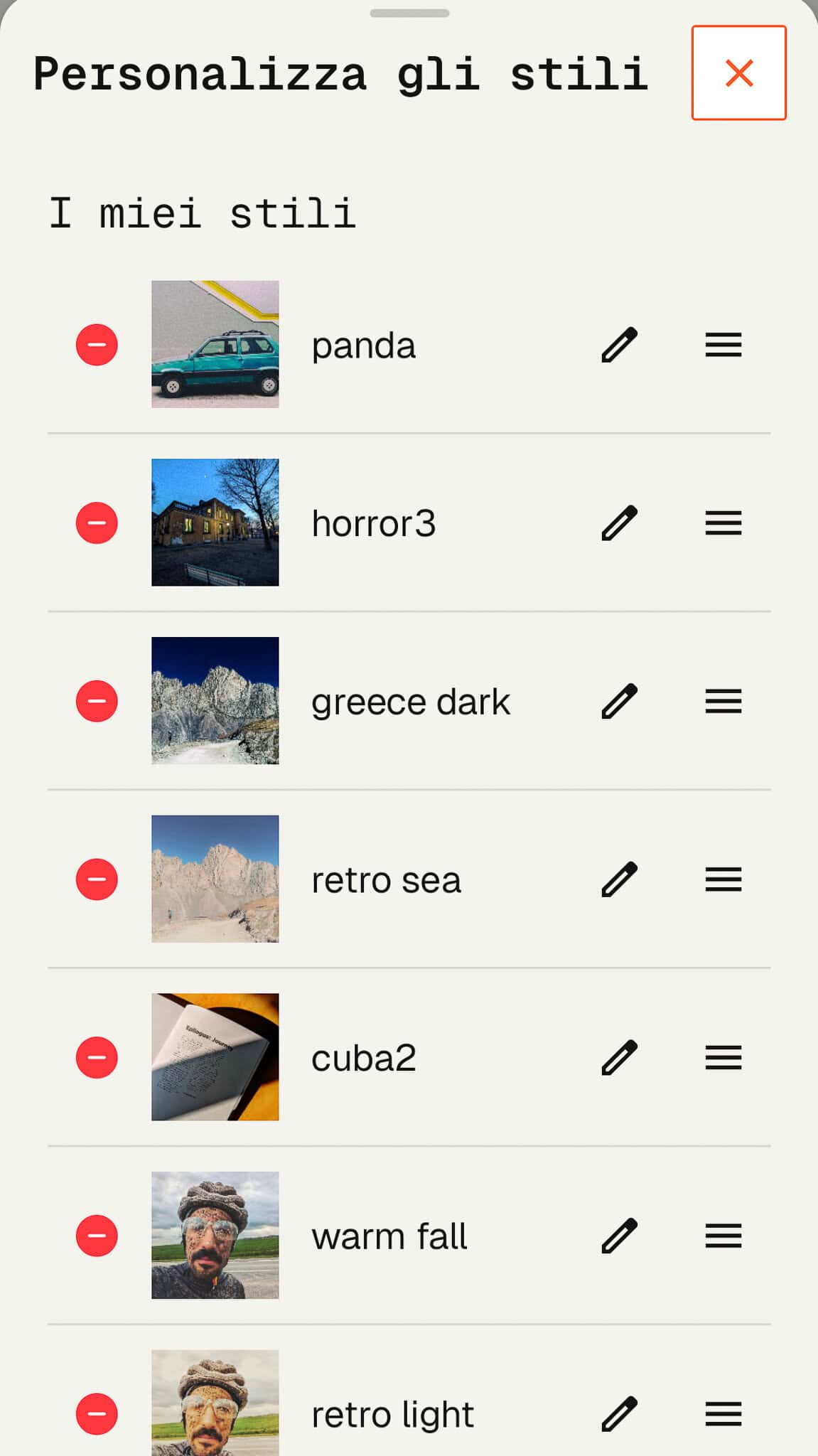
There are five entries but most af all three tabs once you upload a photo: on the left, the looks (“effetti”) option we introduced. These complete sets of tweaks and edits radically change the mood of a picture. More often than not, they are really heavy-handed, so it’s better to tone then down afterwards. In the sub-menu you can choose between your effects – the ones you created by yourself, or downloaded somewhere – and what the community offers. You can also browse on the internet to find interesting new looks. The good news, as we said, is that even other people’s presets can be tweaked to your own taste: “nothing locked here”. Indeed, if you open the information box, it tells you every parameter you need to achieve that look.
And if you want to explore more looks, you can follow Snapseed_giles on Instagram.
If you choose to use a style, be sure to tweak the exposition first, since it dramatically changes how these editings affect the picture.
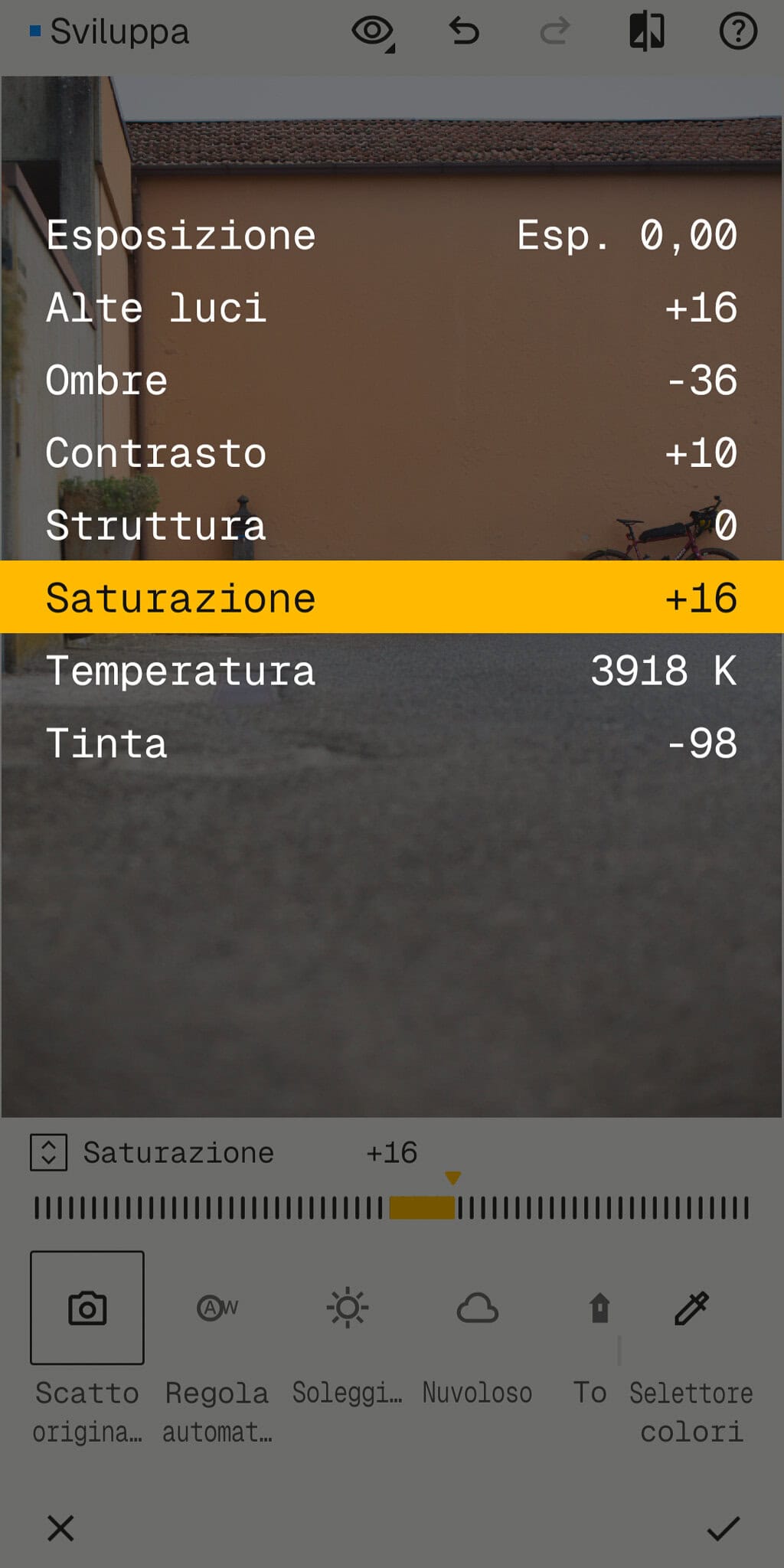
The second tab, tools (“strumenti”), is about the thourough editing. Every parameter can be changed individually, so it takes time, but it’s much more detailed than the overall looks.
When you go to tools, everal tags show up. They are a bit mixed, so it can be confusing at first, especially if you stay on the “all” tab: a few parameters are about bringing the image back to life with basic editing (color HSL, contrast, light, and white balance. However, under the same name “perfeziona” you also find some cosmetic tool, such as vignette.
First of all, you have general editings such as exposure, saturation, contrast, texture, lights and shadows: all the do-it-first modifications before you get deeper. Once you’re done, you can valid and go to the next step.
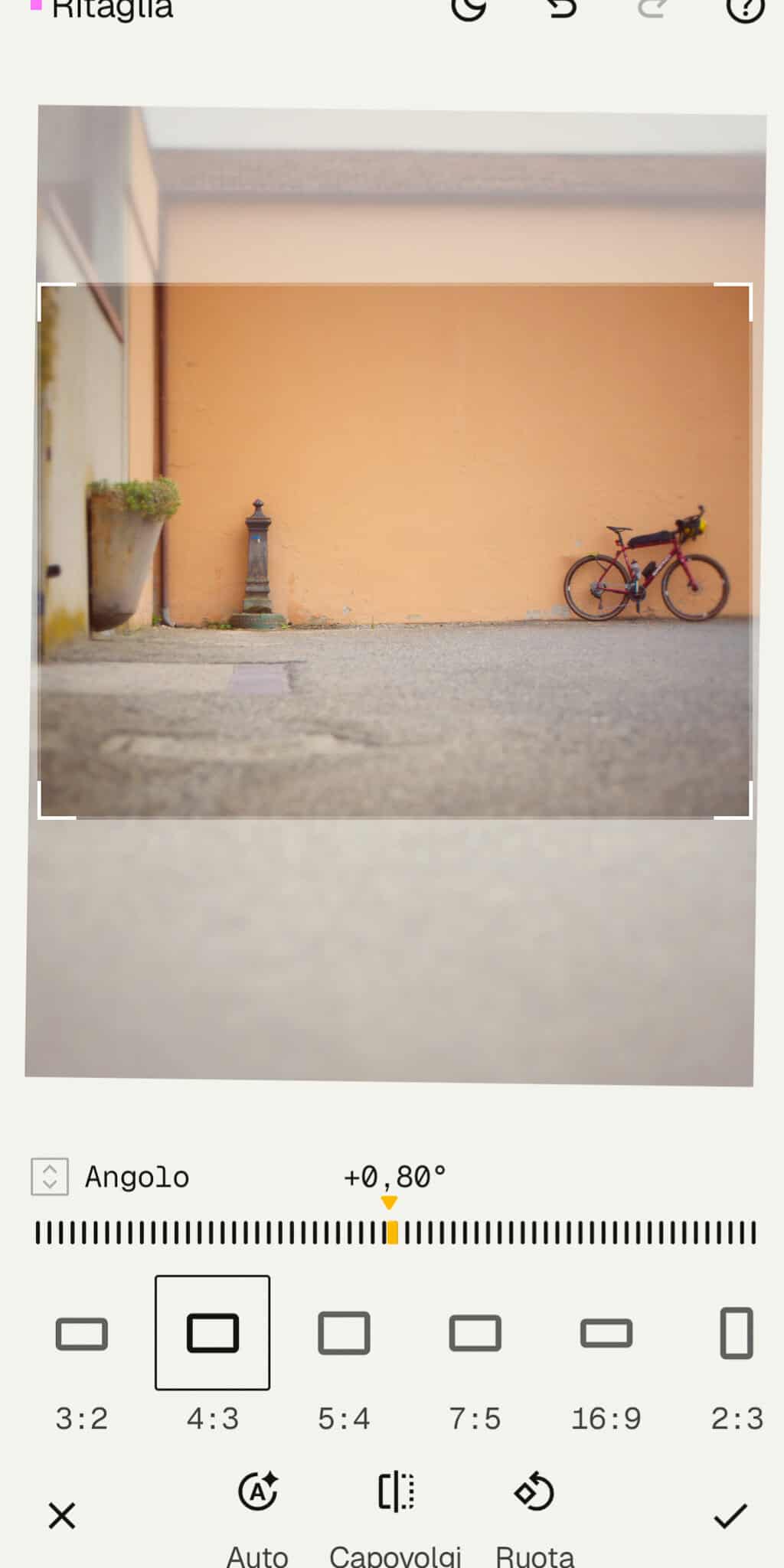
Geometry allows you to straighten up the picture or, well, to play with geometry (no surprises here).
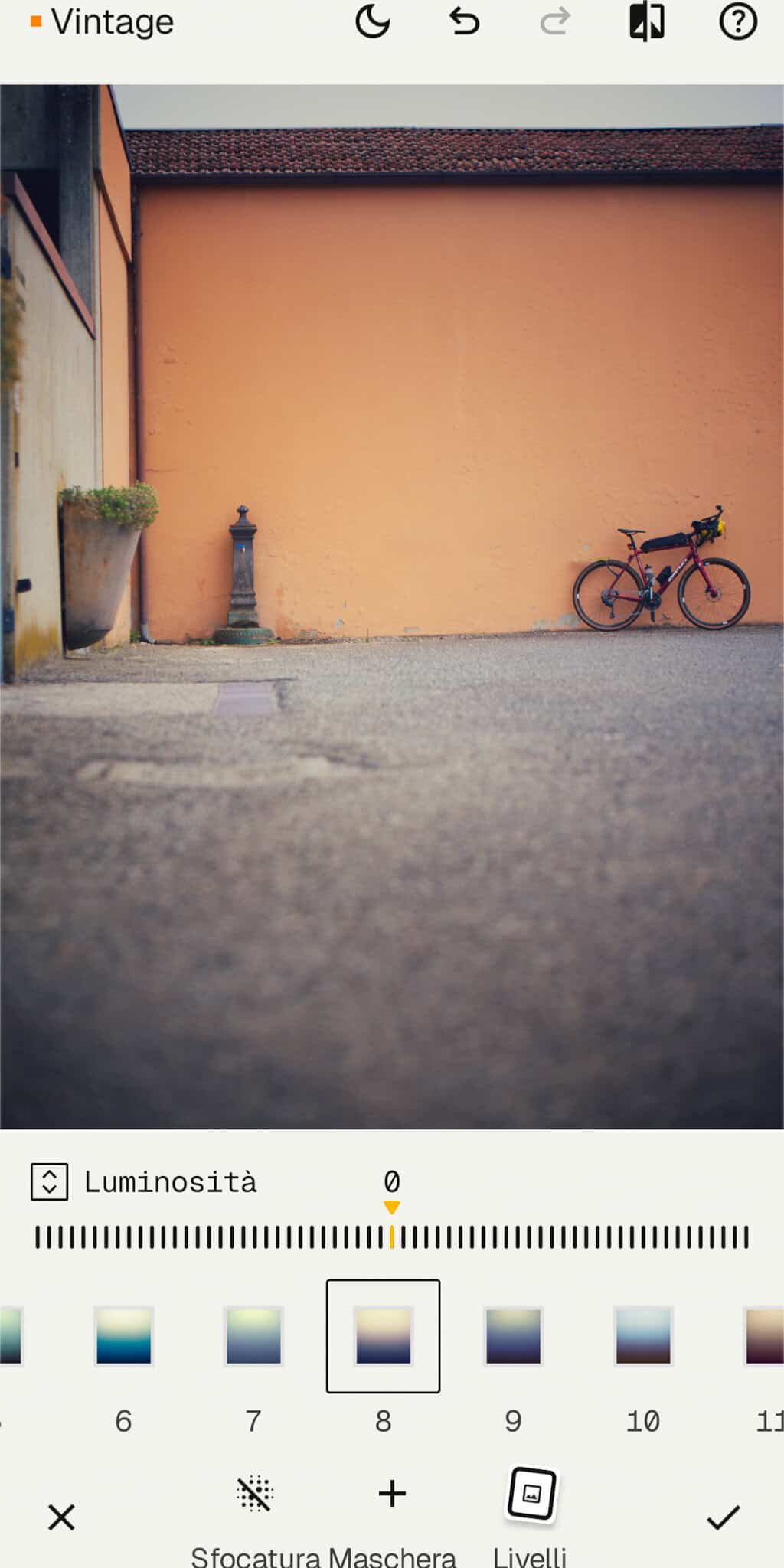
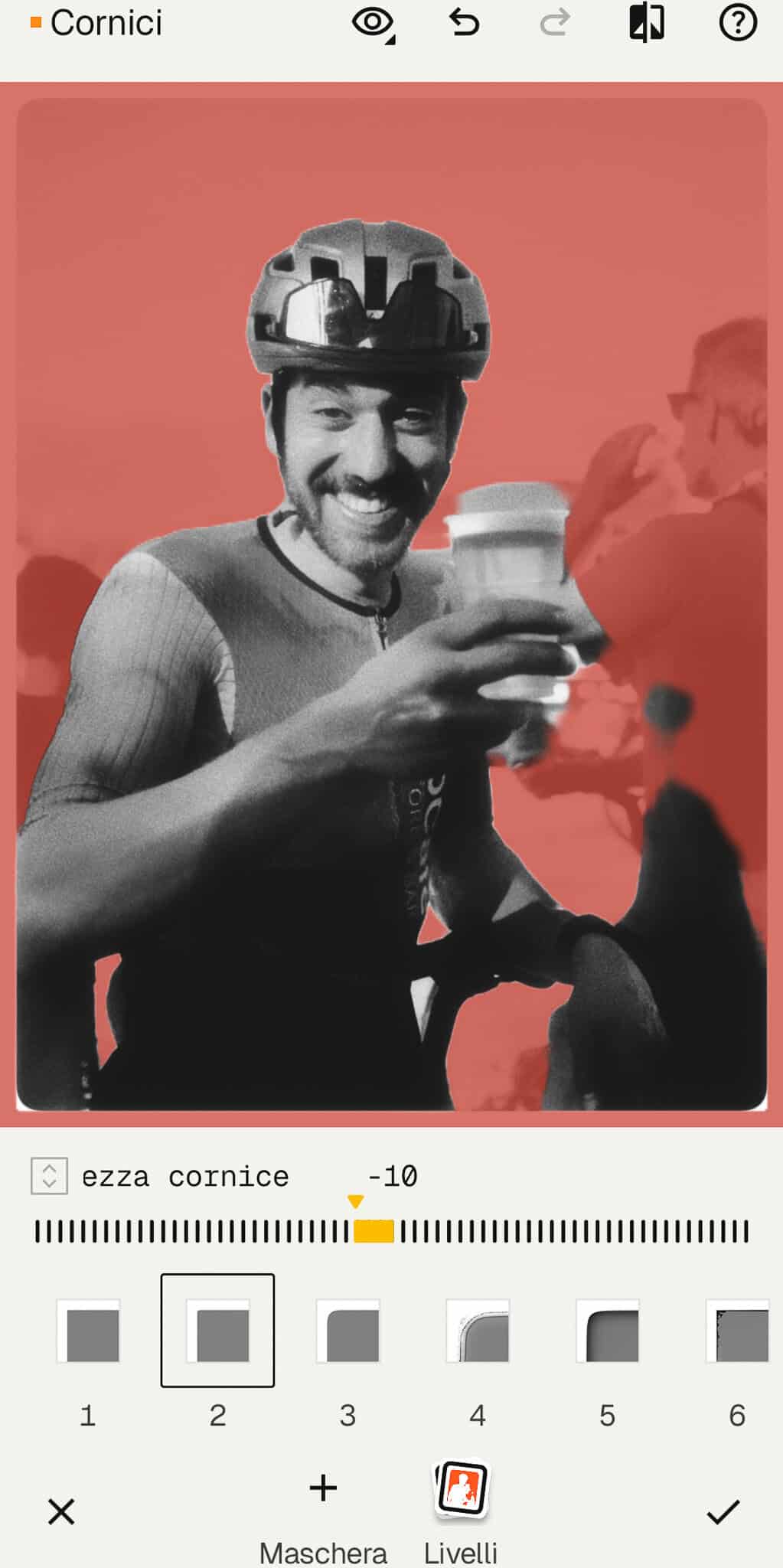
The correction window is about perspective or object removal, and it’s the only one that is really clear. Indeed, the last one, “styles”, includes all the aesthetic stuff (such as grain), which means another set of presets organised by keywords: vintage, noir, grunge, retrolux, and so on. Plus the “frame” menu, the text tool, and a few other stuff. Overall, the organisation of all the entries is not totally clear. It’s not a problem once you get to know the app, it’s just makes the learning curve a bit harder.
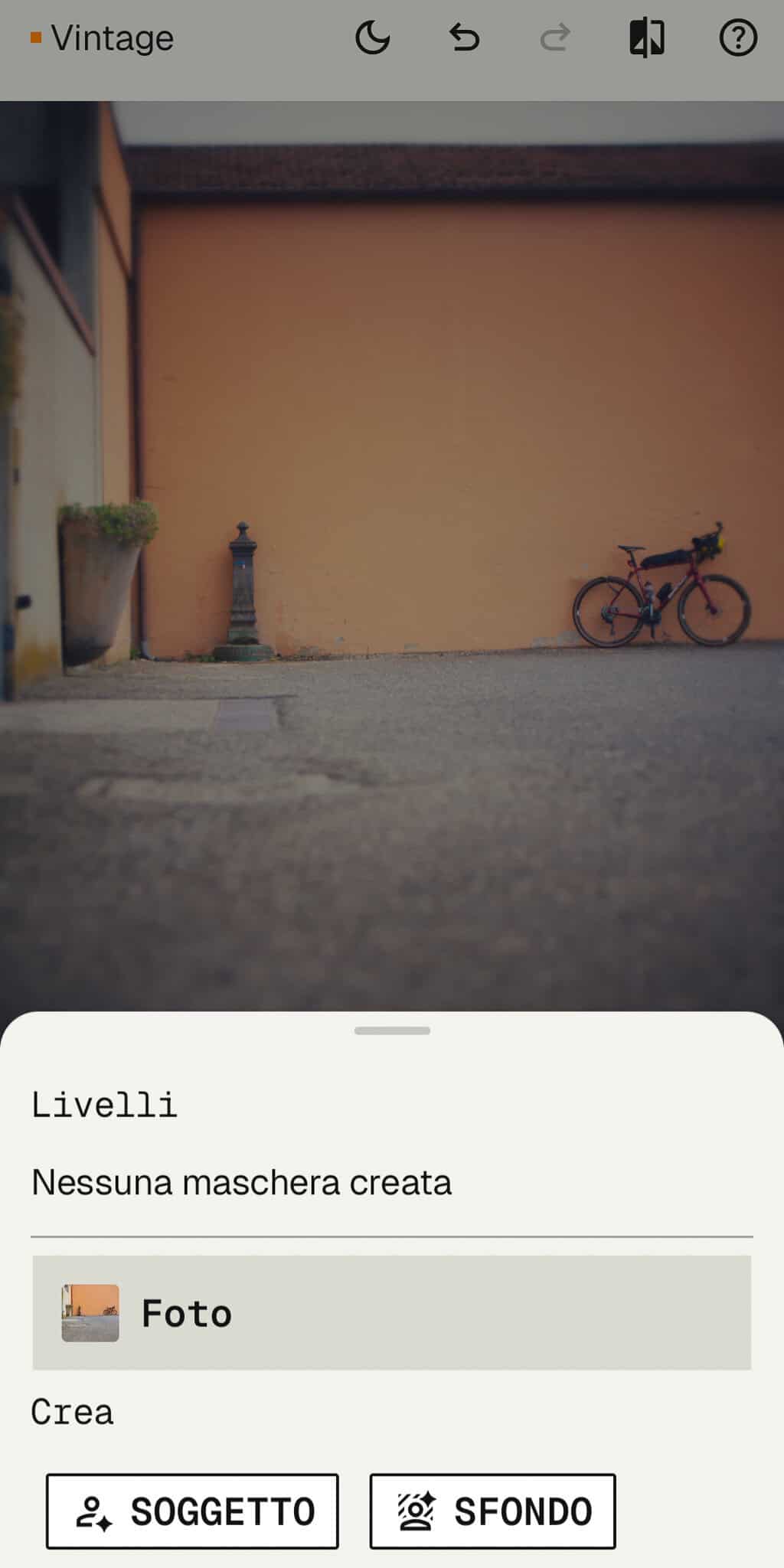
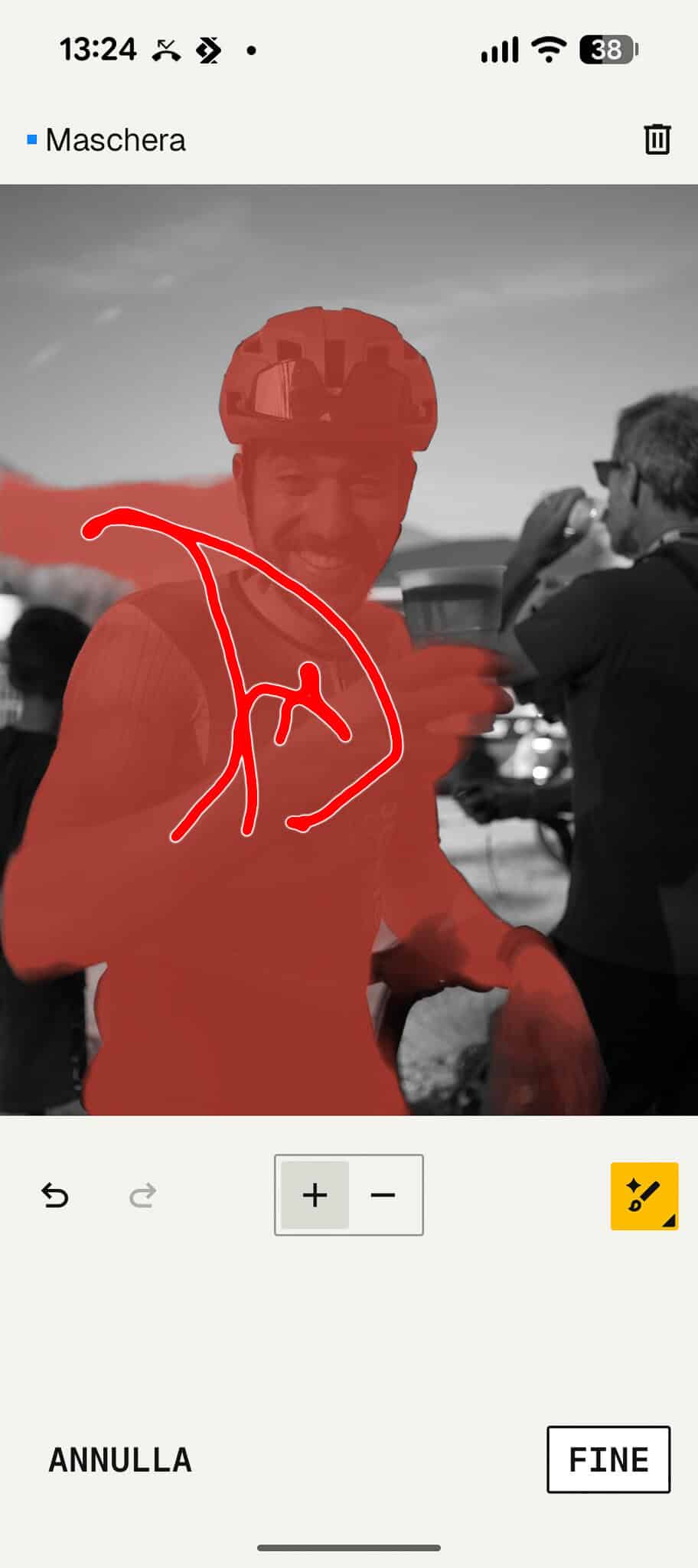
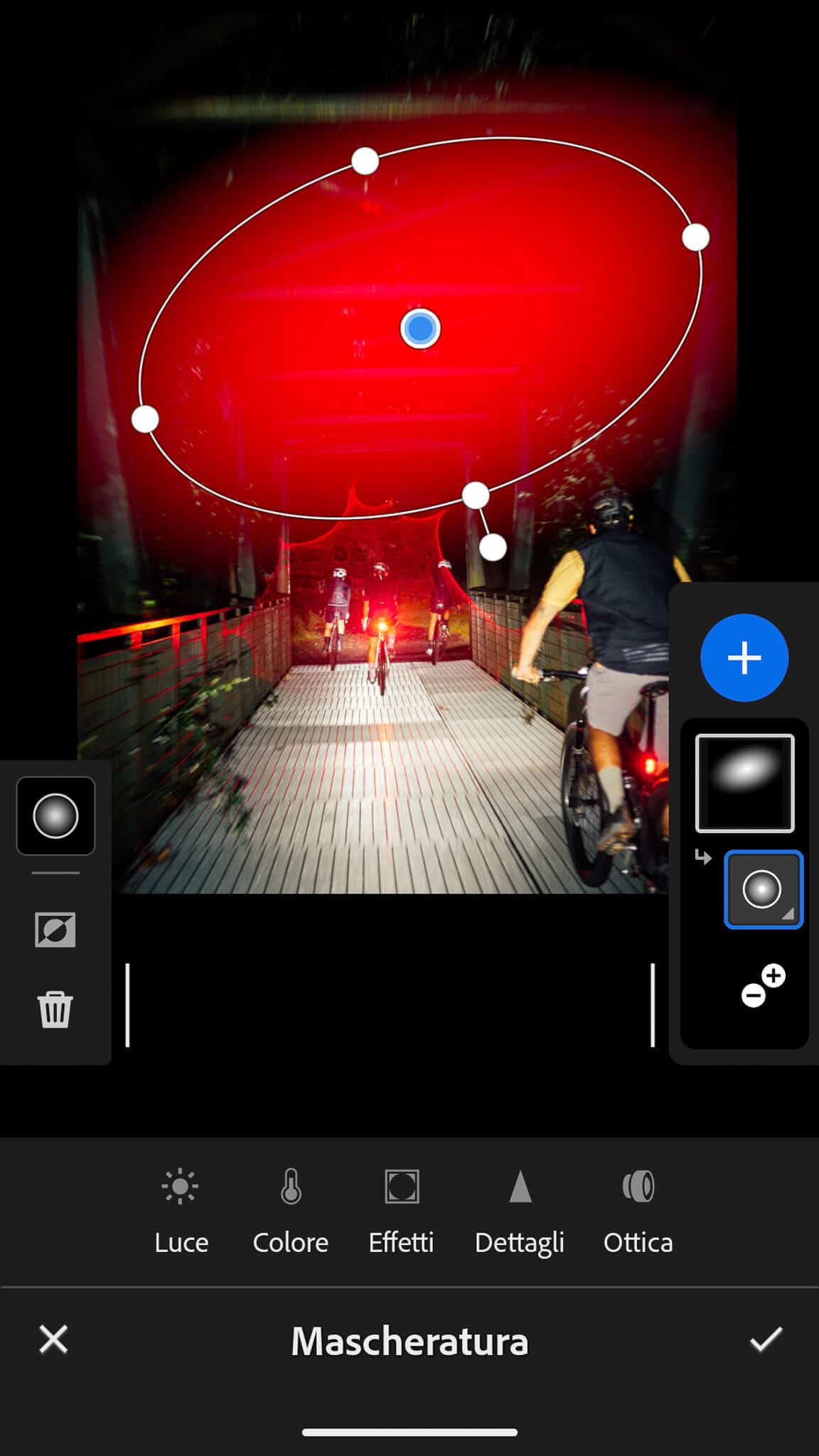
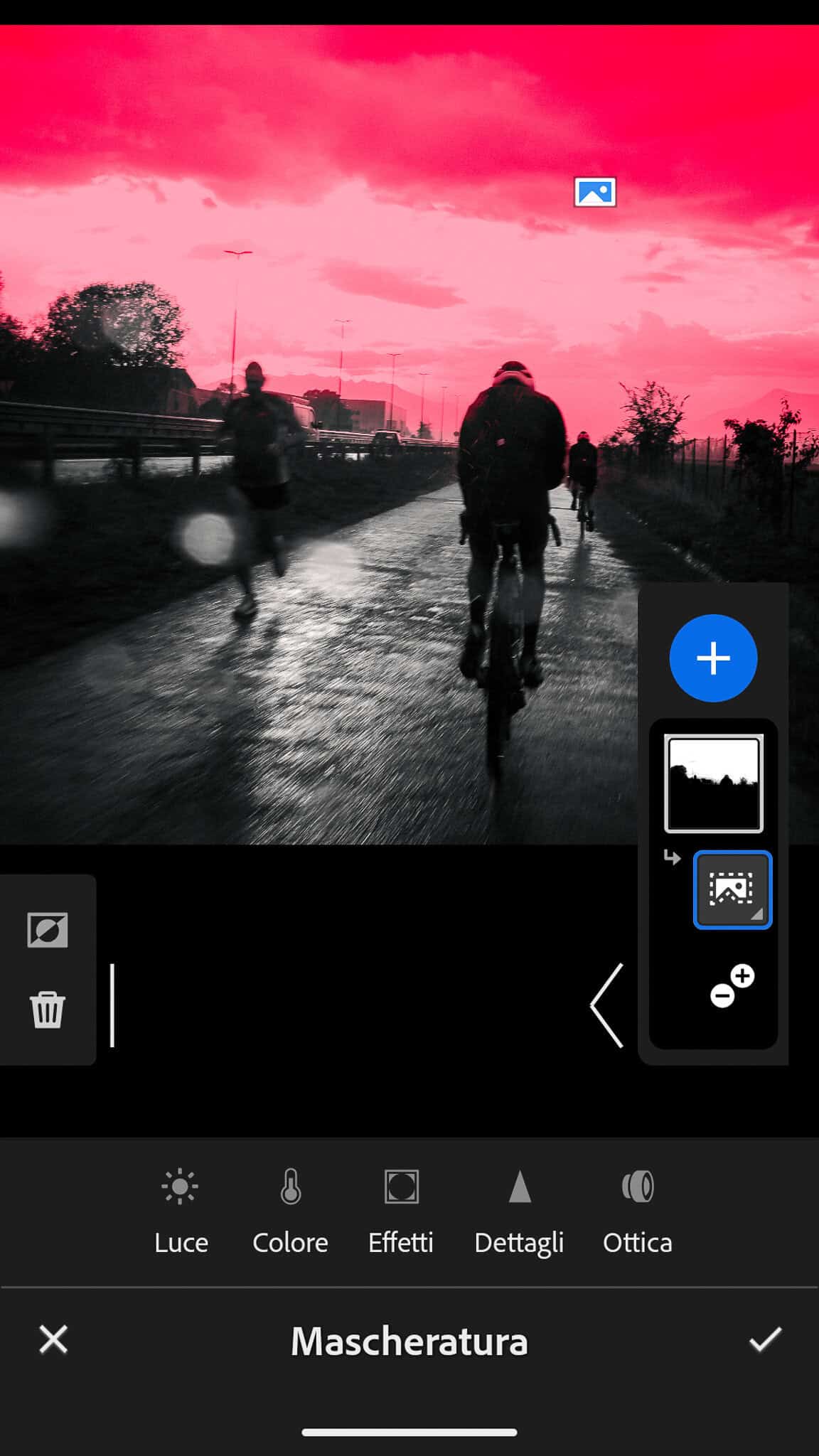
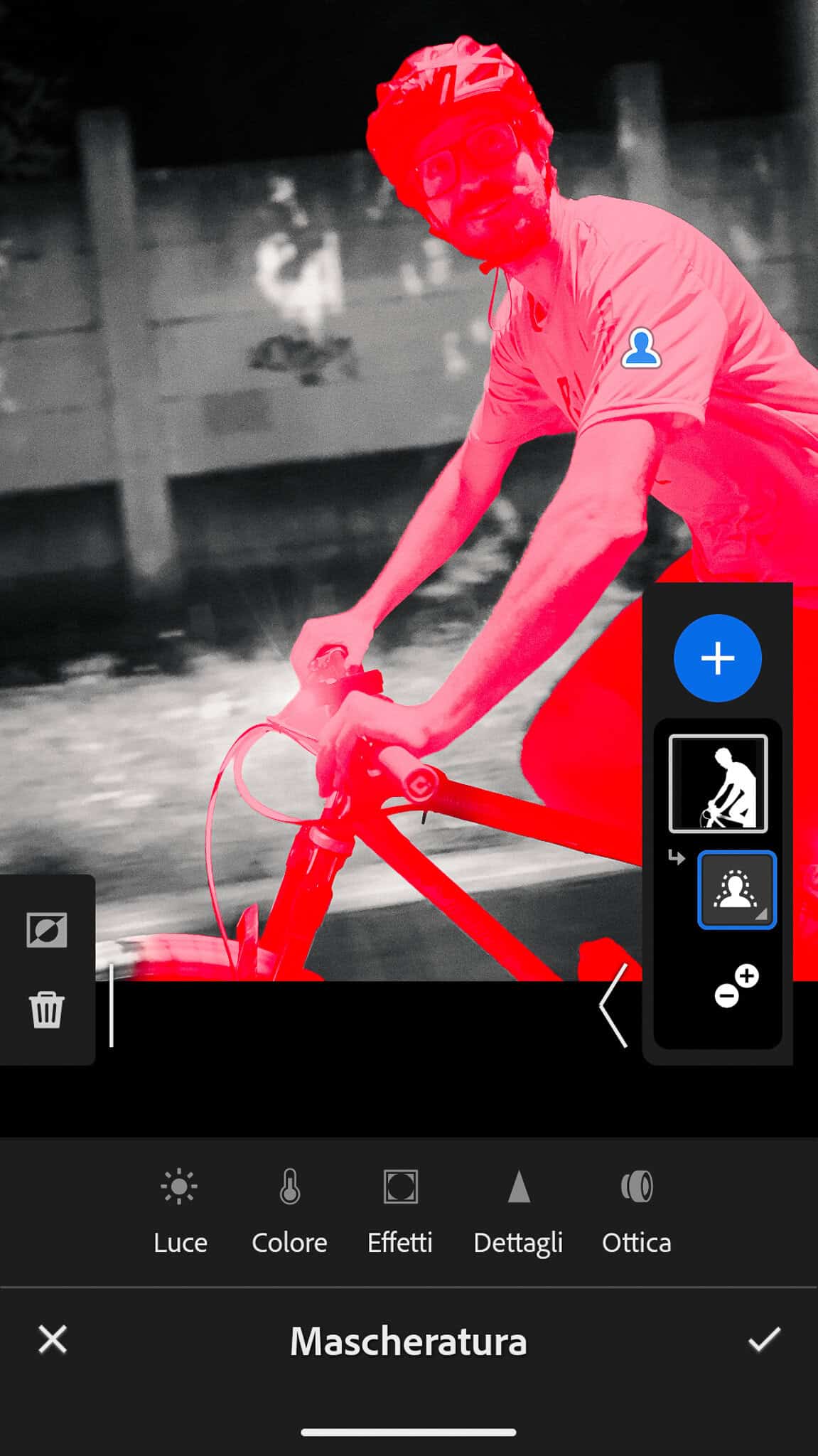
Then there are the masking and level menus, with the possibility to create local editings such as the background or the subject. you can also use your finger to create specific masks. This part is a bit less intuitive, as the management of the layers is not straightforward. However, you can play with these if you fancy. Honestly, I don’t think they are very clear nor effective (at least compared to Lightroom).
Last step – export menu. here you can share or download your image. There are not many options, just quality and size: quick and easy. Done.
Then there are the masking and level menus, with the possibility to create local editings such as the background or the subject. You can also use your finger to create specific masks.
This part is a bit less intuitive, as the management of the layers is not straightforward. I don’t think they are very clear nor effective (at least compared to Lightroom).
Honestly, I’ve never used this section, but of course if you fancy you can play with it.
Last step – export menu. here you can share or download your image. There are not many options here, just quality and size: quick and easy. Done.
Snapseed – so what?
I like:
I don’t like:
Adobe’s mobile app is probably the most advanced solution, although there are others around like Luminar. Lightroom mobile costs a bit (6 euros/months right now, october 2026), but it’s included with the desktop version if you have one of the many subscriptions.
Think about it as a much more complete and much more clear version of Snapseed. Of course, that’s what you get when you have all the expertise, experience, and firepower of Adobe’s history.
Also, it’s part of a cloud environment, so it means that it will sync with LR on your desktop (not the LRClassic, which is the old-school, offline version).
Speaking of desktop Lightroom, it’s worth saying that the mobile version has 95% of the features you will find in the big brother: same preset management, almost same editing depth, same library management, almost same exporting options. It’s a proper tool to work.
Honestly, I don’t like working with it, but simply because smartphone screens are small and not as good as a proper laptop. So, for a very thorough editing, it won’t be perfect. But for on-the-go situations, there’s nothing better in my opinion.
Watch out: Snapseed can work with RAWs, but maybe your phone cannot: in this case, you will see blank previews when you'll try to upload from your library.
This apps is made of two main parts: the library and the editor.
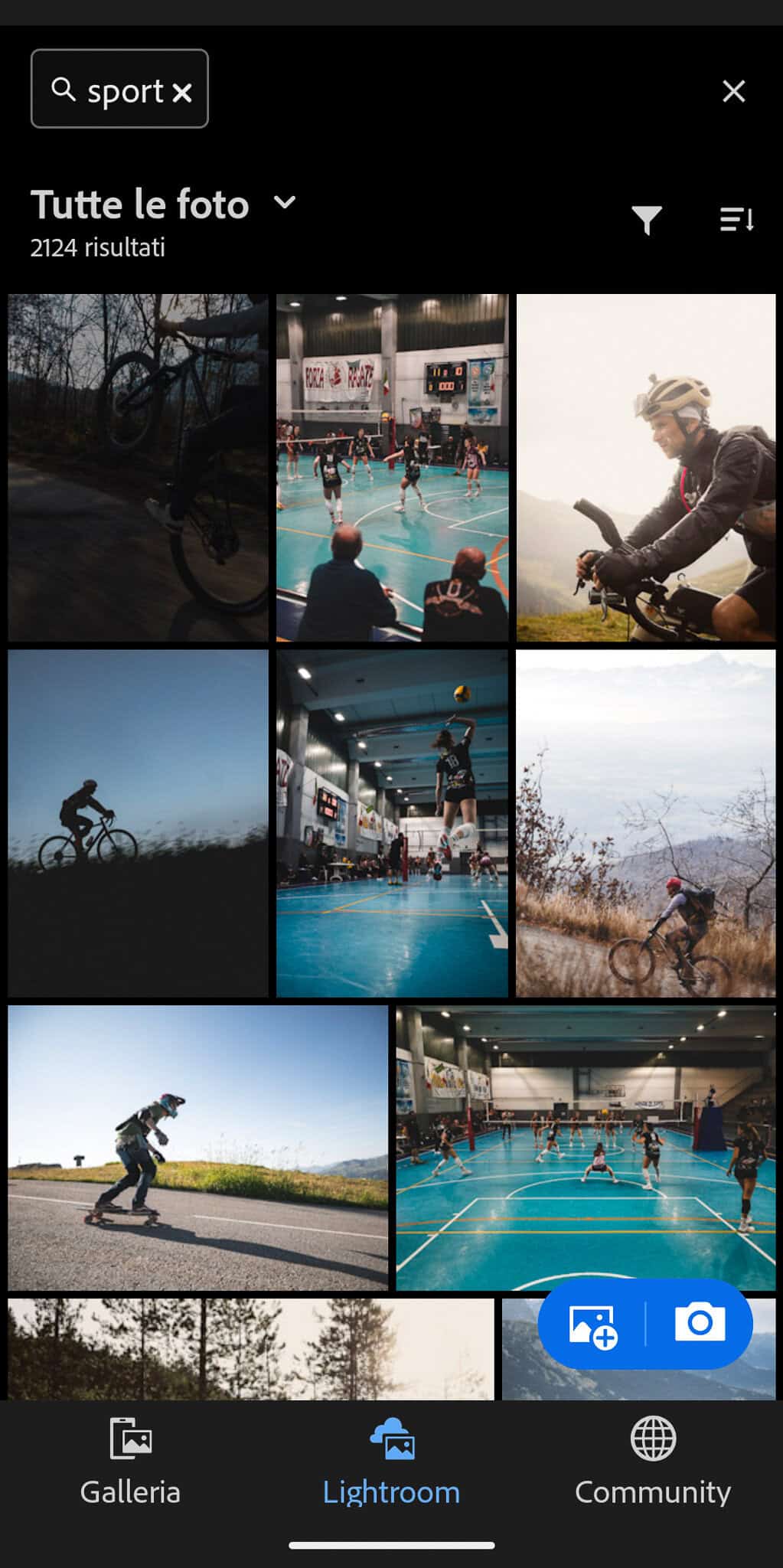
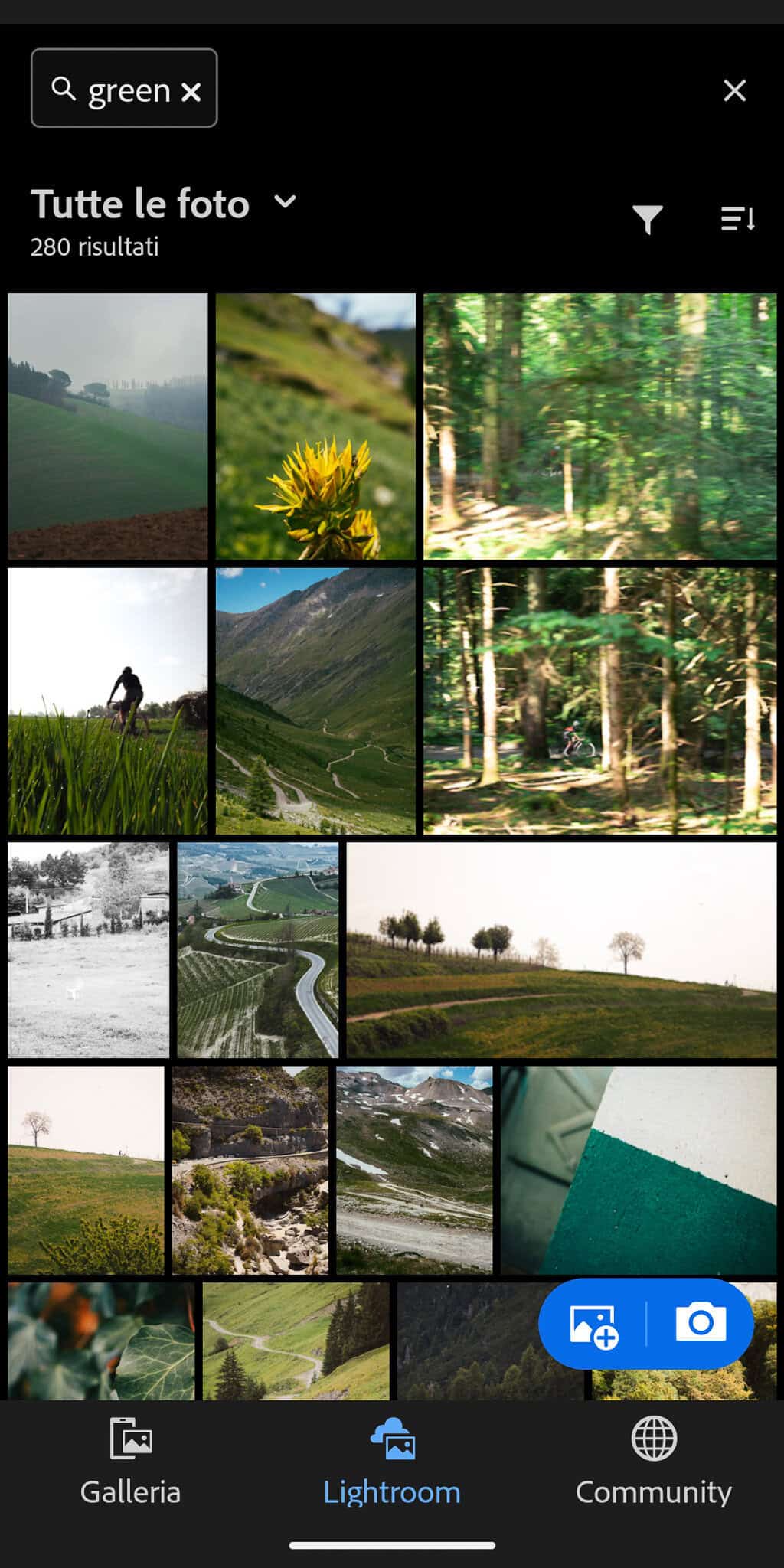
In the library (the “lightroom” tab in the lower middle) you can create albums, import pictures from your device (called “gallery, left tab) or from Drive, and search with AI or with traditional filters. Of course, this library is cloud based, so it syncs with your desktop Lightroom (not with Lightroom Classic though). You can choose single pictures or drag your finger to have a multiple selection.
The real editor opens up when you click on a picture in the lightroom library.
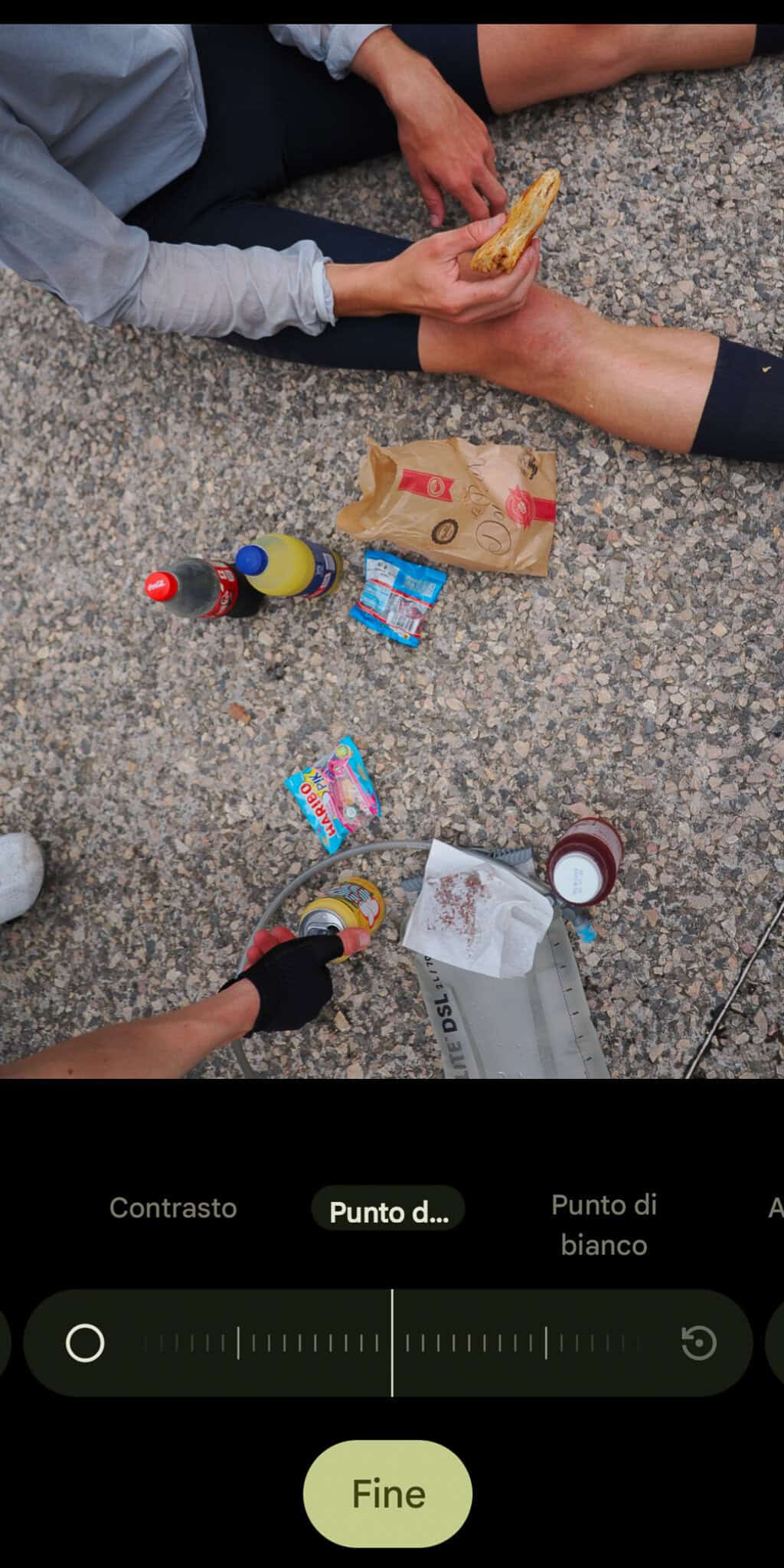
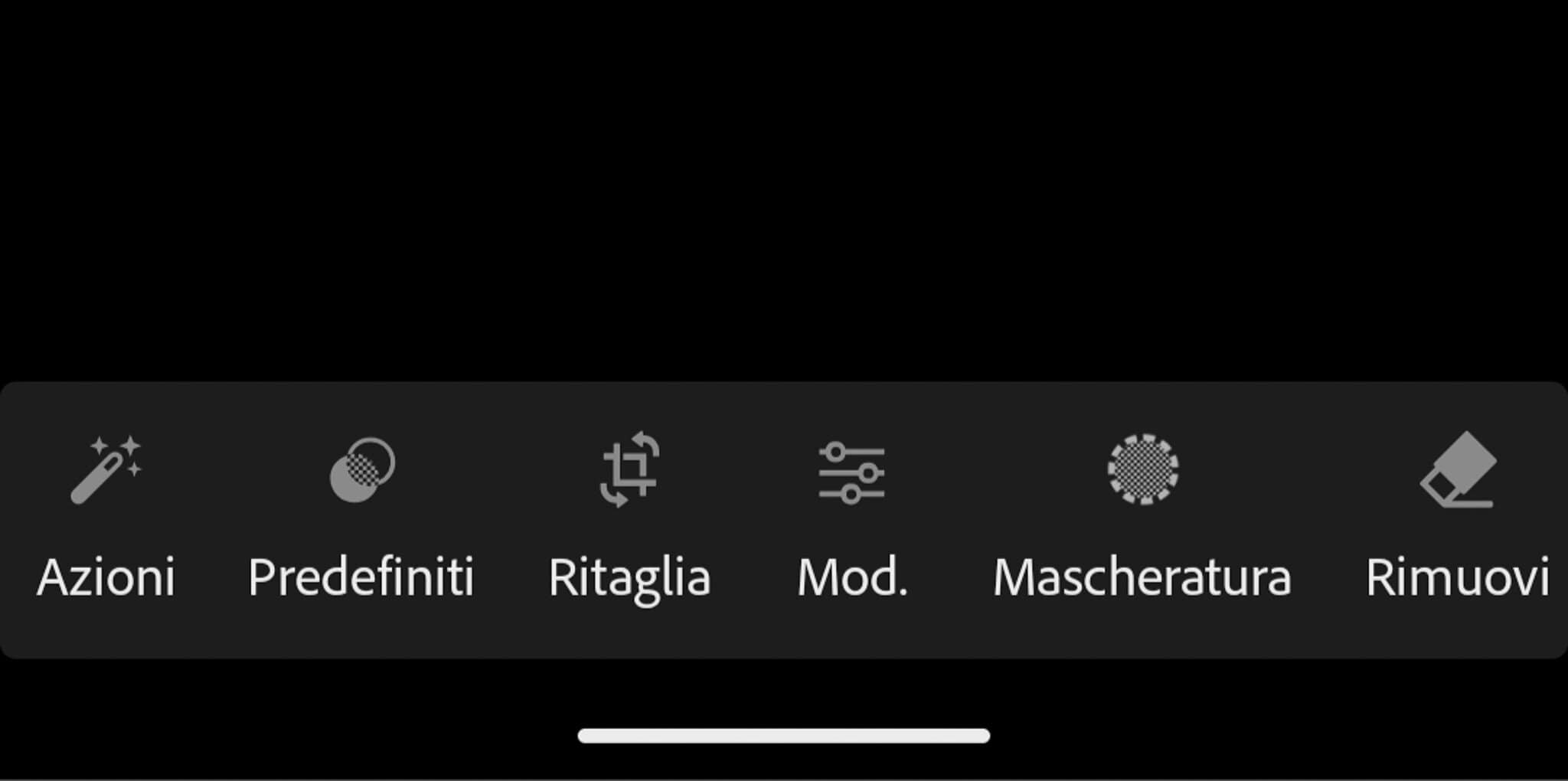
From here, you can work your magic. “Actions” does some automatic stuff, but I never used it, so I can’t say much. The second icon with the two circles opens the presets menu, which is also synced with your LR presets: you can import and export them as you please. And when you apply a preset, you can still edit whatever, of course.
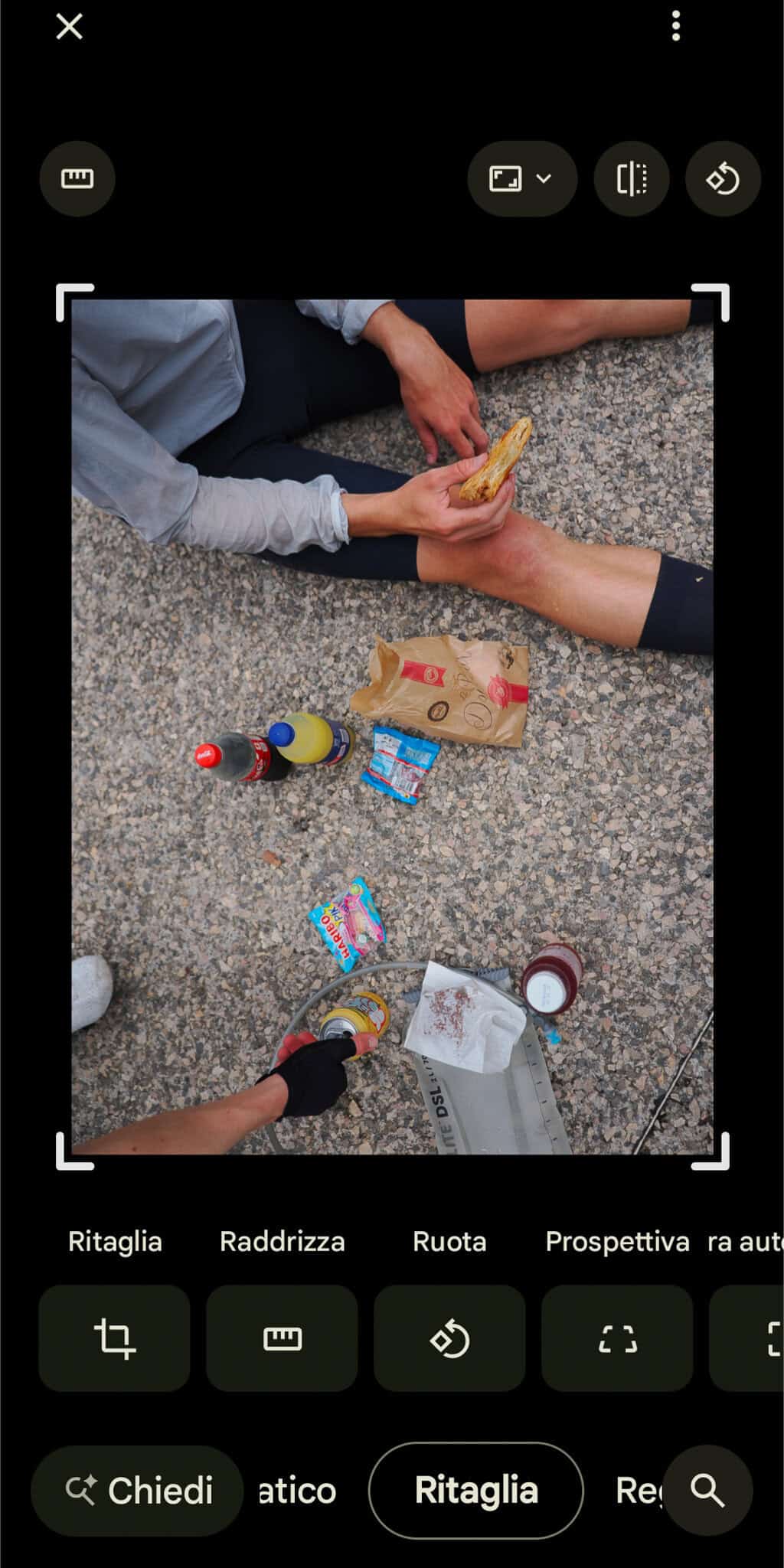
The third icon is about geometry: here you can crop, change the ratio (you also have some pre-formatted Instagram and Tiktok proportions), and even expand the pictures (a new AI feature). But you can also level the horizon or improve the overall geometry, either manually or automatically. You halso have some default proportions like Instagram or Tiktok formats.
Lightroom – so what?
I like:
I don’t like:
One good thing that the defauld editor has, and it’s not on Lightroom and Snapseed, is the possibility to add text, handsigns, underscore, and other stuff, which could be a gamechanger if you’re used to this kind of style.
Which brings us to our last subject: these options are not all of them, and there are plenty of way to edit pictures out there.
Between these three options – free and accurate, free and easy, paying and jam-packed, I hope you can find the right tool for your workflow.
However, I didn’t try much else, so, feel free to add your point of view if you have suggestions about apps that improve your exploration of the cyclo-photography world!
Where to find interesting stories? Quick answer: where things and people are on the move.
A 400km, 14.000mt offroad bikepacking route. Why did we think that was a good thing?
The italian saying is "fare di necessità virtù": a classic reportage and what it can teach us about cycling photography
A book of simple pictures (and four simple ideas) showing us how memory works.
How the right bike can help you shooting? A few considerations.
How to bring gear while riding? This is what gets closest to perfection. Honest review after 6 years.
Our second episode about the tools to make life easier when shooting from the saddle. Which apps?